Bookings
Options and holds
An option is a booking with the status Option: you hold a date for an artist while the promoter decides. Often more than one promoter wants the same date. The hold rank says who is first in line, and the expiry date says how long you keep the date free for them.
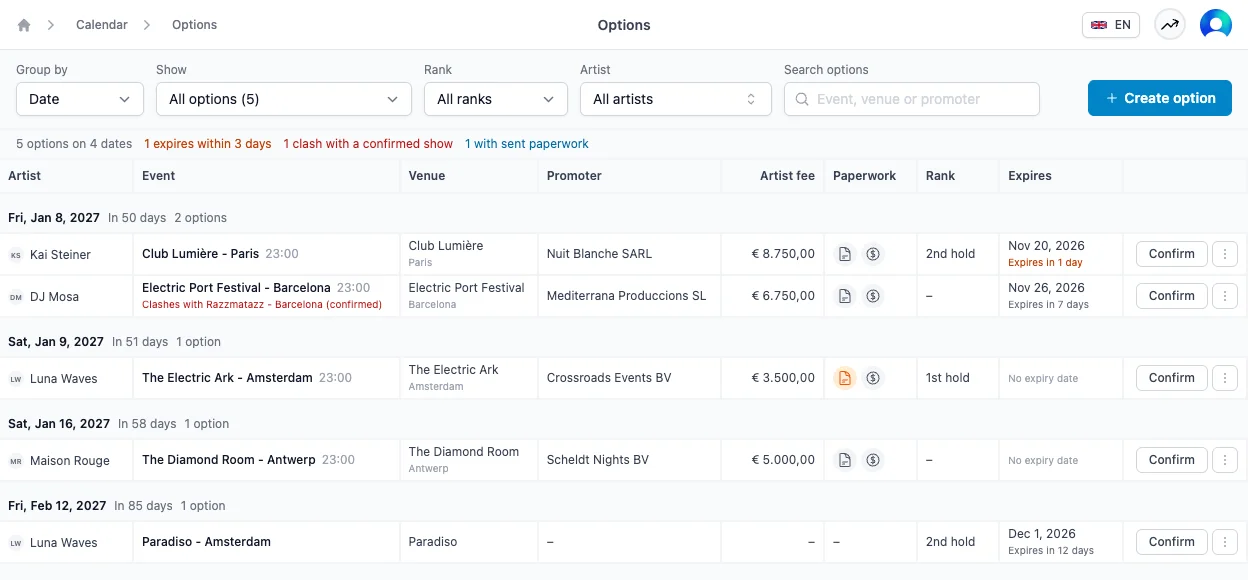
All upcoming options live on one page: Calendar → Options in the sidebar, under Offers.
Reading the page
Every row is one option, with the artist, event, venue, promoter, artist fee, paperwork, rank and expiry date. Above the table you see how many options there are, and a few counts that need your attention:
- Expire within 3 days: the promoter has to decide soon. Chase them or extend the option.
- Expired: the expiry date has passed. Confirm, extend or cancel these.
- Clashes with a confirmed show: the artist already has a confirmed show on that date. The row says which one, and you can click through to it.
- With sent paperwork: an agreement, invoice or advancing has already been sent. That option is probably no longer just an option, so it is time to confirm it.
Click a count to show only those options. Click it again to show all of them.
When an artist has more than one option on the same date, the row says so in orange, so you can see at a glance which promoters compete for that date.
The Paperwork column uses the same icons as the booking list. Hover an icon to see the status of the agreement or invoice, and click it to open it.
Grouping and filtering
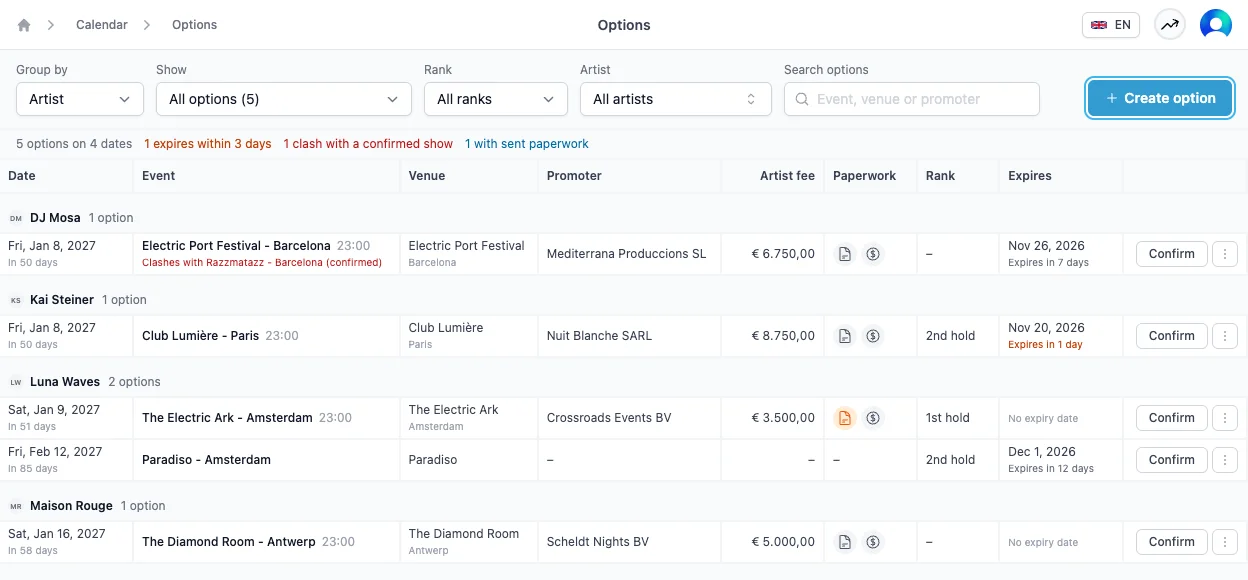
Use Group by to switch between grouping per Date and per Artist. Grouping per date shows competing holds together. Grouping per artist shows one artist's open dates at a glance.
You can also filter by:
- Show: all options, or only the ones that expire soon, have expired, clash with a confirmed show, or have sent paperwork.
- Rank: 1st, 2nd or 3rd hold, or options without a rank.
- Artist: pick one or more artists.
- Search options: the event name, venue, city or promoter.
Acting on an option
Click Confirm when the show is on. The option becomes a confirmed booking and leaves this page.
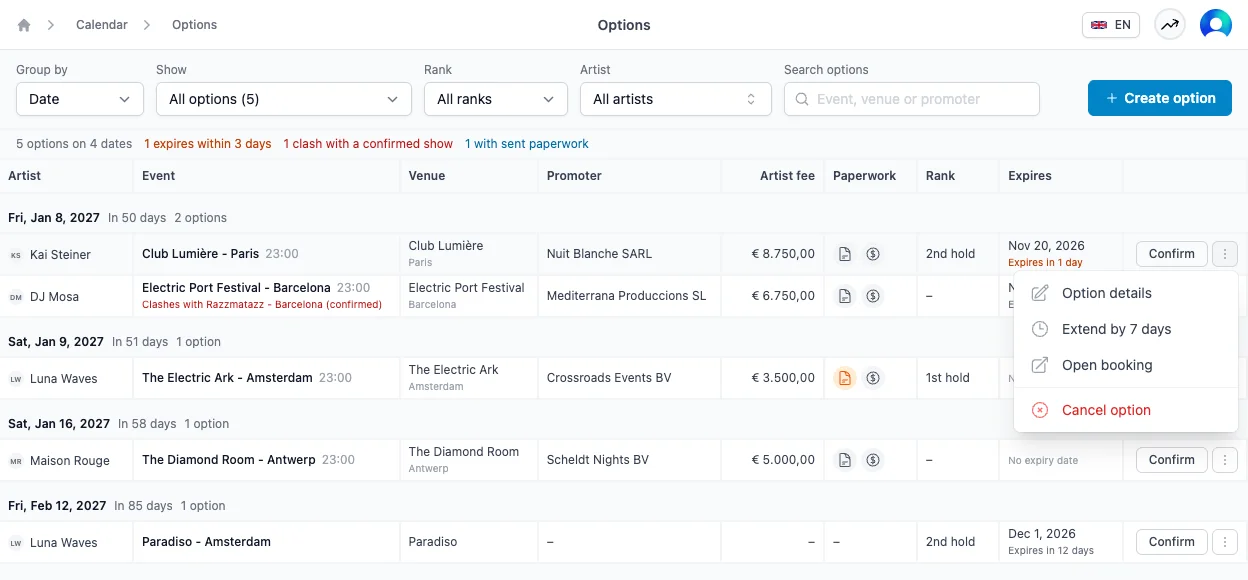
The menu next to it has the other actions:
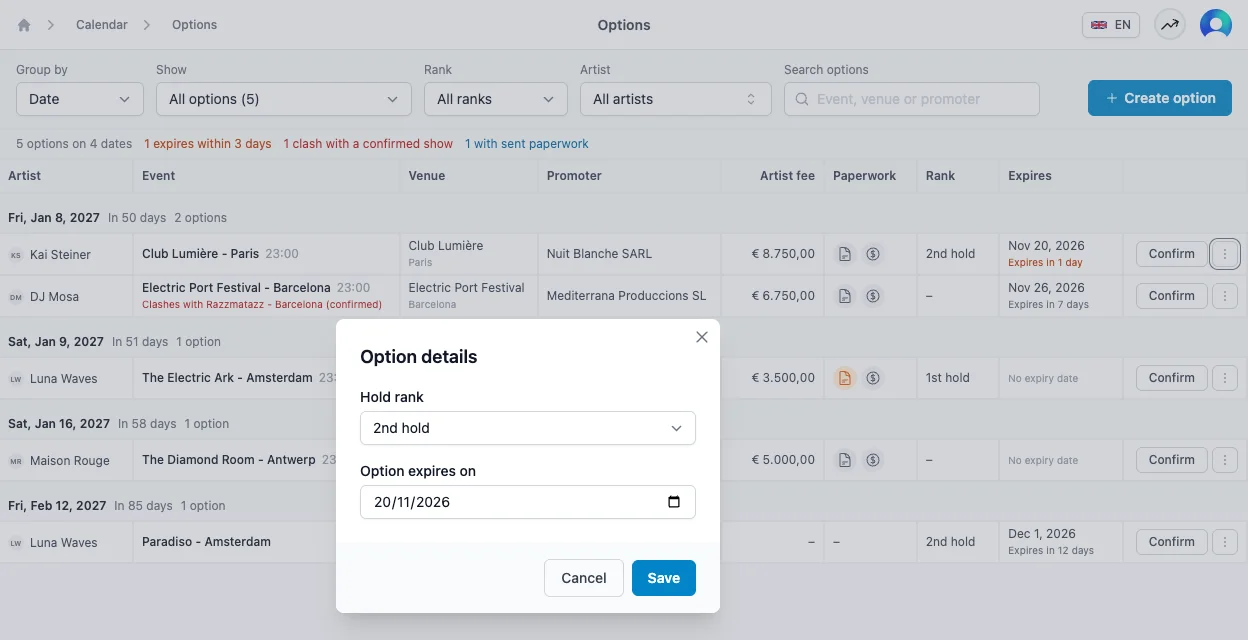
- Option details changes the hold rank and the expiry date.
- Extend by 7 days moves the expiry date a week later. An expired option is extended from today.
- Open booking goes to the booking itself.
- Cancel option cancels the booking. If an agreement was signed or an invoice was sent, Artistu warns you and offers to credit the invoice.
You can also click the Rank or Expires cell of a row to open the option details straight away.
Creating an option
Click Create option at the top of the page. The quick create form opens with the status already set to Option. Next to the status you set the Hold rank and Option expires on. Both are optional, and you can change them later.
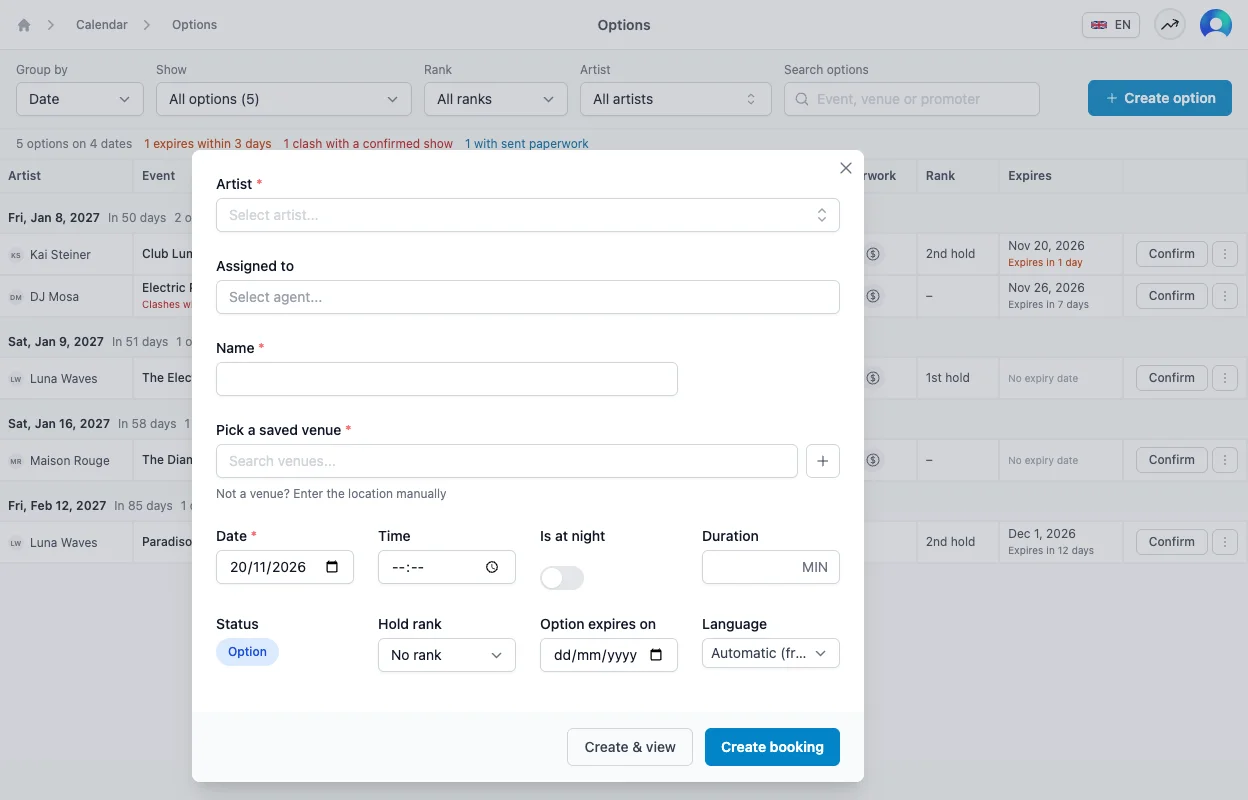
Any booking you create with the status Option shows up on this page, wherever you create it. On the booking itself you find the rank and expiry date under the status, and you can change them there too.
A few things to know
- Only upcoming options are listed. Options for dates in the past don't show up here.
- Nothing happens automatically when an option expires. The date stays held until you confirm, extend or cancel it. Expiring and expired options also show up under Needs attention on the home page.
- The rank is a label. Artistu doesn't move a 2nd hold up when the 1st hold is cancelled. Change the rank yourself under Option details.